Your First Project
This tutorial will guide you through creating a simple interactive scene in Brakeza3D. By the end, you'll have a rotating 3D cube that responds to keyboard input.
Prerequisites
- Brakeza3D installed and running
- Basic understanding of Lua programming
Step 1: Create a New Project
- Launch Brakeza3D
- Go to
Brakeza→Documentationto familiarize yourself with the interface - The engine starts with an empty scene by default
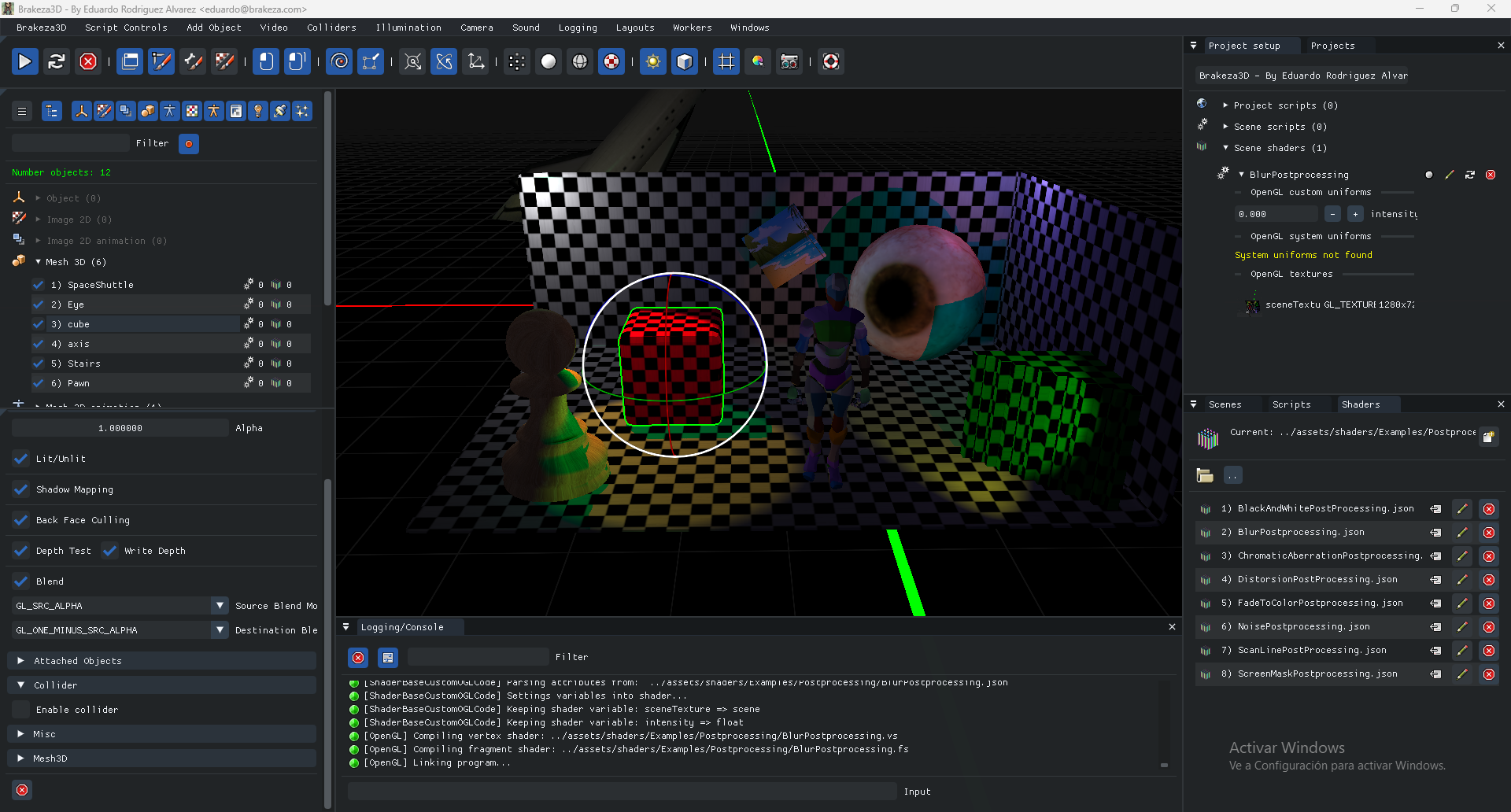
Step 2: Add a 3D Object
Let's add a cube to the scene:
- Go to Add Object → Mesh3D
- Navigate to
assets/models/and select a model (e.g.,Cube.fbx) - The cube will appear at position (0, 0, 0)
Step 3: Create Your First Script
Now let's make the cube interactive with a Lua script.
Create the Script File
- Open Window → File Browser
- Navigate to the Scripts section
- Right-click and select New Script
- Name it
RotatingCube.lua
Write the Script Code
Double-click on RotatingCube.lua to open it in the Code Editor, then paste:
-- RotatingCube.lua
-- A simple script that rotates an object and responds to keyboard input

-- Variables
local rotationSpeed = 1.0
local moveSpeed = 5.0

function onStart()
    -- Called once when scripts start playing
    print("RotatingCube script started!")
end

function onUpdate()
    -- Called every frame
    local dt = Brakeza:getDeltaTime()

    -- Get the current rotation
    local rotation = this:getRotation()

    -- Create a rotation matrix for Y-axis rotation
    local angle = rotationSpeed * dt
    local newRotation = M3.getMatrixRotationForEulerAngle(0, angle, 0)

    -- Apply the rotation
    this:setRotation(rotation * newRotation)

    -- Handle keyboard input
    local input = Components:Input()
    local position = this:getPosition()

    if input:isCharPressed("w") then
        position.z = position.z + moveSpeed * dt
    end
    if input:isCharPressed("s") then
        position.z = position.z - moveSpeed * dt
    end
    if input:isCharPressed("a") then
        position.x = position.x - moveSpeed * dt
    end
    if input:isCharPressed("d") then
        position.x = position.x + moveSpeed * dt
    end

    this:setPosition(position)
end
Save the Script
Press Ctrl+S or click the save button in the Code Editor.
Step 4: Attach the Script to the Object
- Select the cube by clicking on it in the scene or in the Scene Objects window
- Open the Object Scripts window (Window → Object Scripts)
- Drag and drop
RotatingCube.luafrom the File Browser into the Object Scripts window
Step 5: Run Your Script
- Click the Play button in the toolbar (or go to Script Controls → Play Scripts)
- Your cube should now be rotating!
- Use W, A, S, D keys to move the cube around
To stop the scripts, click Stop in the toolbar.
Step 6: Save Your Scene
- Open Window → File Browser
- Navigate to the Scenes section
- Click the Save button
- Name your scene (e.g.,
MyFirstScene.json)
Step 7: Save Your Project
- Open Window → File Browser
- Navigate to the Projects section
- Click Save Project
- Name your project (e.g.,
MyFirstProject.json)
Understanding the Code
Let's break down the key concepts:
The this Variable
In object scripts, this refers to the object the script is attached to. You can:
- Get/set position:
this:getPosition(),this:setPosition(pos) - Get/set rotation:
this:getRotation(),this:setRotation(rot) - Get/set scale:
this:getScale(),this:setScale(scale)
Lifecycle Functions
| Function | When Called | Use Case |
|---|---|---|
onStart() | Once when Play is pressed | Initialize variables, setup |
onUpdate() | Every frame | Game logic, movement, input |
onCollision(with) | When collision occurs | Collision response |
Delta Time
Brakeza:getDeltaTime() returns the time since the last frame in seconds. Always multiply movement by delta time to ensure consistent speed regardless of frame rate.
Components
Access engine systems through Components::
Components:Input()- Keyboard, mouse, gamepadComponents:Camera()- Camera controlComponents:Render()- Rendering settingsComponents:Sound()- Audio playbackComponents:Collisions()- Physics system
Next Steps
Congratulations! You've created your first Brakeza3D project. Here are some ideas to explore:
- Add lighting: Try adding a
PointLightorSpotLightto the scene - Add collisions: Enable physics on your cube with
setupGhostCollider()orSetupRigidBodyCollider() - Create a UI: Use
Image2Dto display HUD elements - Add sound: Load and play audio with
Components:Sound()
Continue to the Scripting API section for a complete reference of all available functions.