Layout modes
Brakeza3D offers three default widget layouts, designed for different workflow types. It’s important to note that the functionality remains the same; only the visual arrangement of the widgets on the screen changes.
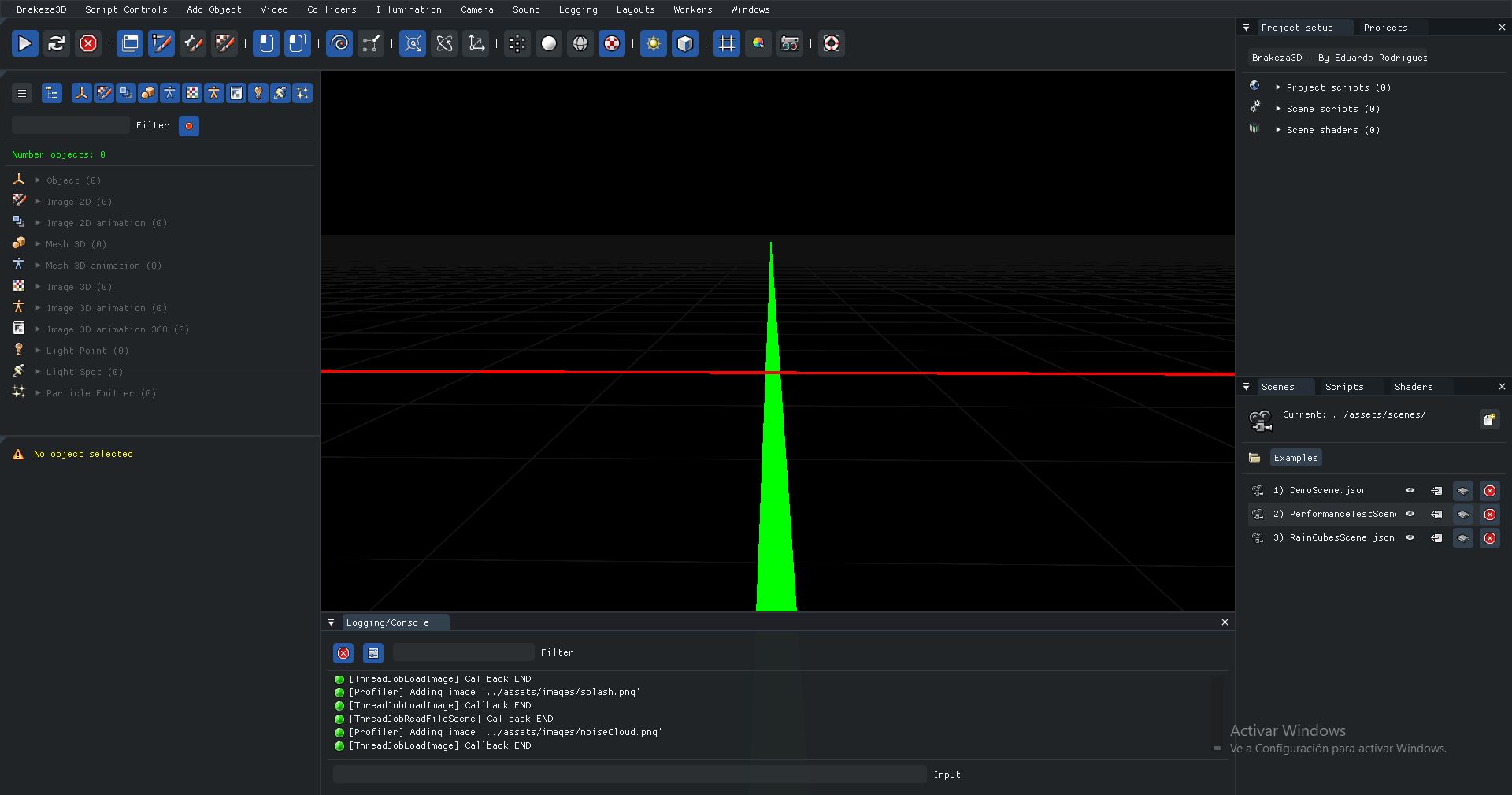
Default layout
The default layout provides a balance between the other two layouts. In this layout, you can easily access the object inspector, its properties, system logs, and the browsers for loading resources.
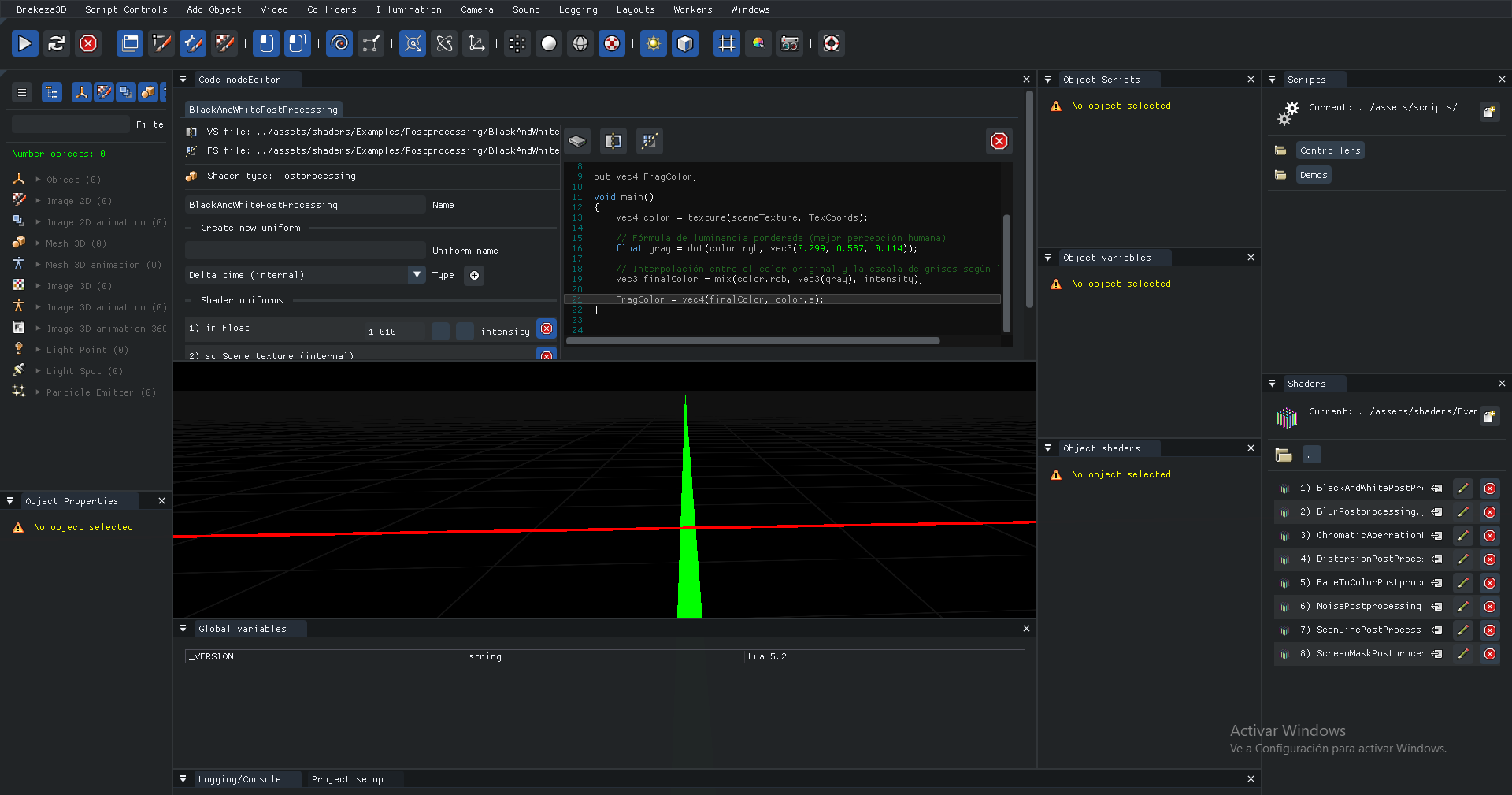
Developers layout
The Developers layout is designed to focus on LUA script coding tasks. You have access to the object inspector, its properties, as well as its associated scripts and shaders. This layout also includes the code editor.
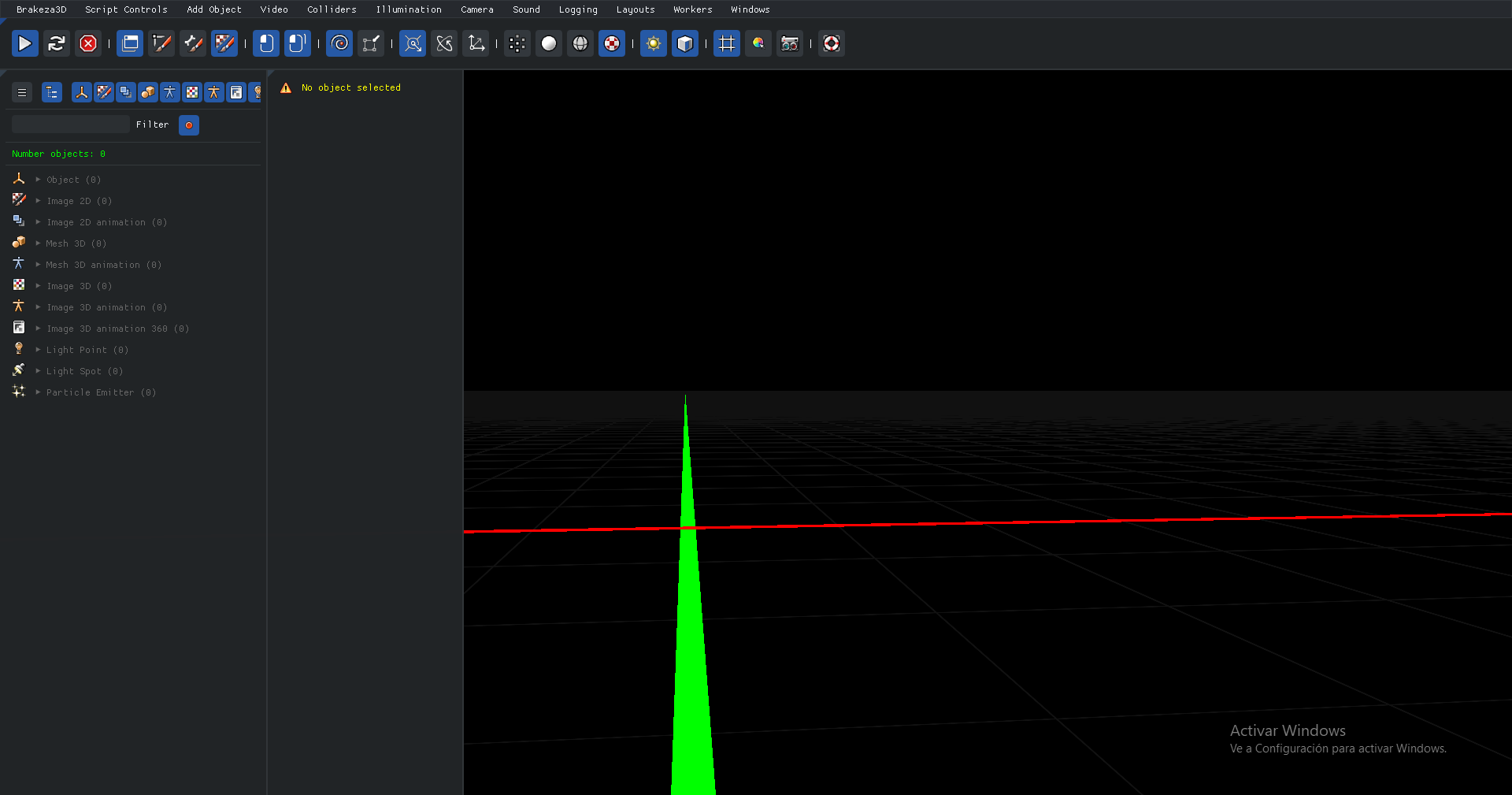
Design layout
The Designers layout is designed to optimize the scene view area while keeping the object inspector and its properties window accessible. It is ideal for scene assembly.
Windows list
In the main menu, you will find the Windows section, which provides access to all the available windows in the application.
| Section | Description |
|---|---|
| Project Setup | Project configuration, including its name, scripts, and global shaders |
| Scene Objects | Objects loaded in the scene. Click to select one |
| Object Properties | Properties of the selected object |
| Object Scripts | Scripts associated with the selected object |
| Object Variables | Variables associated with the scripts of the selected object |
| Object Shaders | Shaders associated with the selected object |
| Global Variables | Global variables in the application |
| Images | Access to the assets/images folder |
| Keyboard/Mouse | Viewer for keyboard and mouse events |
| File Browser | Unified browser for projects, scenes, scripts, and shaders |
| Console Log | Log console |
| Light Depth Maps | Debugging dynamic light depth maps |
| Profiler | Engine performance: frame times, render passes, GPU timing, caches |
| Threads | Worker thread pools and pending loading jobs |
| Code Editor | Editor with syntax highlighting for LUA/GLSL |
| UI Manager | Visual editor for UI widgets (see UI Widgets) |
Profiler
Besides CPU times per component and per render pass, the Profiler window offers:
- Count draw calls / triangles: per-frame totals (instanced draws count once).
- Enable GPU timing: measures the real GPU time of each render pass (
GL_TIME_ELAPSEDqueries), shown next to the CPU time. - Export CSV (avg/median/P95/P99): writes
logs/profiler_<date>_<time>.csvwith the statistics of every pass, CPU and GPU. Useful to compare performance before and after a change. - Cache statistics (images, models, scripts) with buttons to reset or clear them, and a view of the internal framebuffers (layers, G-Buffer, picking).