Scripts
Scripts are Lua source code files used to interact with the engine. They execute the logic that brings your application to life.
Scripts can be attached to projects, scenes, or objects to implement the desired behavior. They are stored on disk as Lua files and can be loaded at any time. You can create as many scripts as needed.
Scripts are a key component of Brakeza3D’s core, with several dedicated windows for monitoring various aspects of their operation.
As we’ll cover in the 4) Scripting API section, Scripts use variables like any other software. They can be global or local (tied to a specific object).
To keep this information organized, several dedicated windows are provided, as outlined below.
Managing Scripts
Scripts are managed through the File Browser window (Window → File Browser). Navigate to the Scripts section to browse, create, edit, or delete scripts.
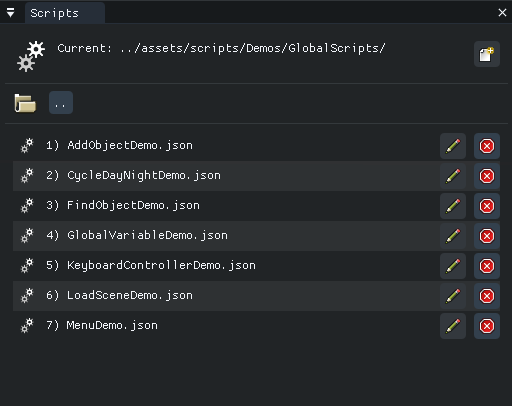
From the File Browser you can:
- Create new script files
- Open scripts in the Code Editor (double-click)
- Delete existing scripts
- Drag and drop scripts to objects or project setup
Global variables widget
The Global variables window lets you monitor the variables created by your global scripts. It is read-only, so you can only view the values.

Values are updated only while the scripts are running.
Selected object scripts widget
The Object Scripts window lets you manage scripts assigned to a specific object. Clicking an object in the scene will display its scripts here, allowing you to configure them for that object only.
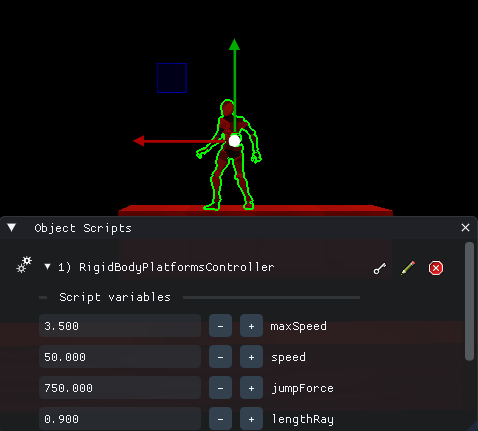
You can enable or disable each script individually if desired.
Selected object variables
The Object Variables window shows any variables defined by scripts assigned to the selected object.
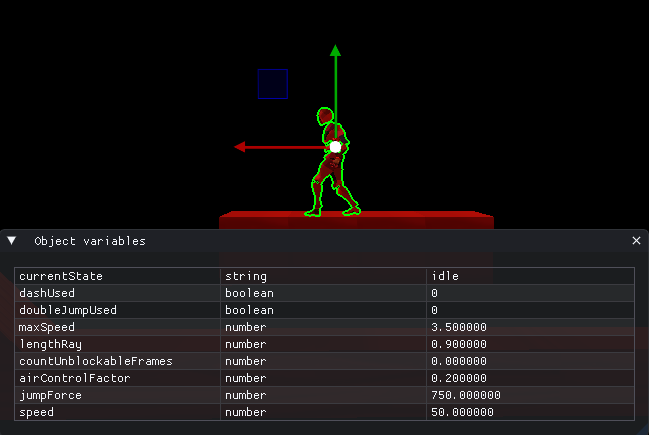
Values are updated only while the scripts are running.
Project scripts settings widget
As seen in section 2.3) Projects, each project has its own Project Setup window, where associated scripts can be managed. From here, you can adjust script settings, usually the default values of their variables, if any.
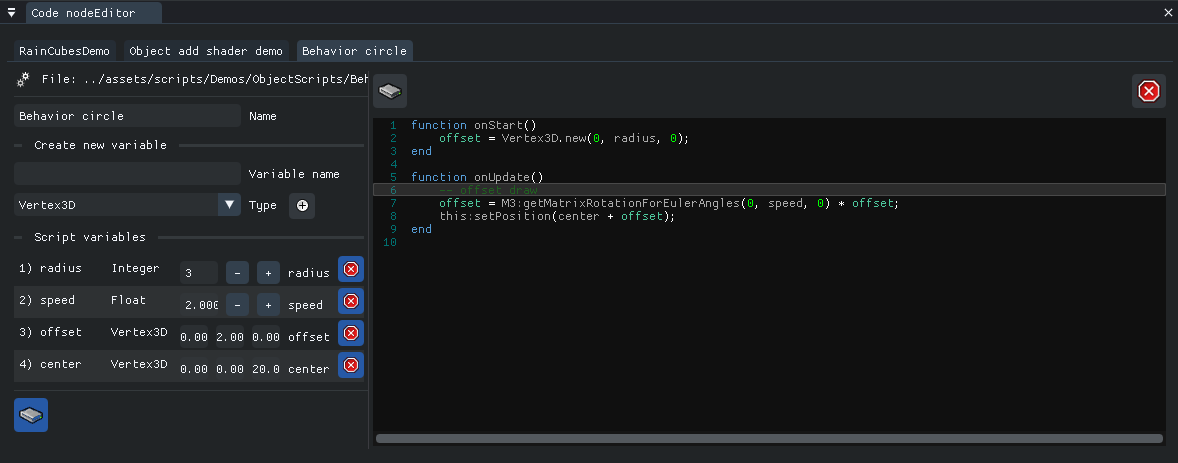
Code editor window
The Code Editor lets you write and configure your scripts, as well as save them to disk. You can have multiple files open at once, and the editor organizes them using tabs.