Projects
A Project is a container for scenes, scripts, and global settings. It can be stored on disk as a JSON file and loaded at any time.
The Project is the highest-level entity in Brakeza3D. In general, you will have one project per application or game you are working on.
Project settings
A Project contains the following configuration:
Global Settings
| Setting | Description |
|---|---|
| Resolution | Default window resolution (width x height) for the project. This can be overridden at runtime. |
| Volume | Master volume and individual volume controls (music, SFX, ambient) that persist across scene changes. |
| Shared Resources | Common assets (textures, models, audio files) that are preloaded and shared across all scenes in the project, improving performance and reducing memory duplication. |
| Scenes List | Registry of all available scenes in the project with their paths. Defines the start scene and allows easy navigation between scenes. |
Scripts and Shaders
The Project setup widget allows us to configure the global Scripts and the post-processing Shaders that are applied to the scene.
In this section, you will find a drop-down tree with three options:
| Option | Description |
|---|---|
| Project scripts | Global scripts. These scripts control the flow of your application. Even if you change the Scene, Project scripts will remain associated until you load another Project. This type of script shares its variables globally with the rest of the scripts. |
| Scene scripts | Scene scripts. Every time you open a scene, you will find its associated scripts here. They are also global in nature, meaning their variables are accessible by other scripts. |
| Scene shaders | Brakeza3D includes a post-processing shader chain. These shaders are executed in the order they are added and allow you to achieve visual effects across the entire scene. |
Project Lifecycle
The Project maintains its state across scene transitions:
- Global scripts continue executing when switching scenes
- Volume settings persist throughout the application
- Shared resources remain loaded in memory
- Scene transitions preserve project-level data and state
| Project setup #01 | Project setup #02 | Project setup #03 |
|---|---|---|
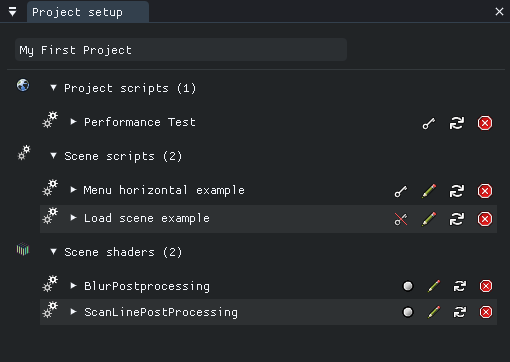 |  | 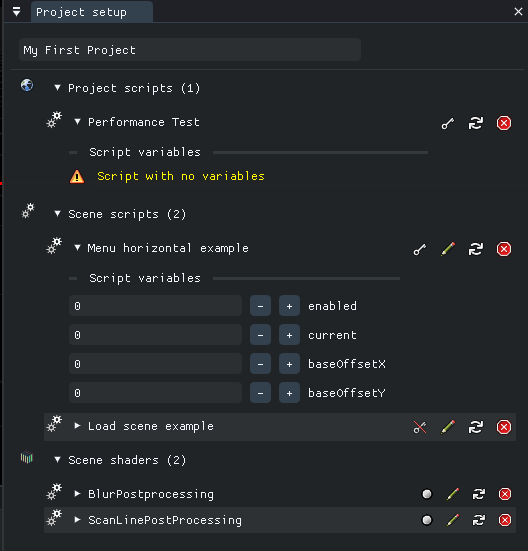 |
Each of these options can receive items via drag and drop. Use the file browser (either Scripts or Shaders) and drag them into the Project setup widget.
You can enable/disable the widget from the main menu: Window -> Project setup.
Managing Projects
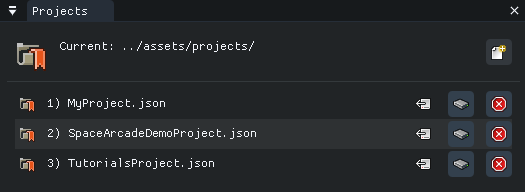
Projects are managed through the File Browser window (Window → File Browser). Navigate to the Projects section to:
- Load an existing project
- Save the current project
- Delete a project
Use drag and drop from the File Browser to add scripts and shaders to your project setup.